(English) The description below is in Korean.
Please refer to the link below for the English description for Windows.
[ 정보 ]
- 어플리케이션명 : DSN Viewer (* 변경 전 어플리케이션명 : FileViewer)
- 최종 버전 : 0.2.4
- 릴리즈 날짜 : 2026-09-09
[ 설명 ]
윈도우(Windows) 11에서 개발된
CSV (.csv)
엑셀(Excel) (.xlsx, .xls)
OpenDocument Spreadsheet Calc (.ods) : 리브레오피스(LibreOffice) Calc, 오픈오피스(OpenOffice) Calc
JSON (.json)
XML (.xml)
TSV (.tsv)
를 지원하는 심플 뷰어입니다.
pandas + PySide6 / PyQt5 + pyinstaller를 이용하여 개발되었습니다.
- Qt6 버전 : pandas + PySide6 + pyInstaller
- Qt5 버전 : pandas + PyQt5 + pyInstaller
[ 기능 ]
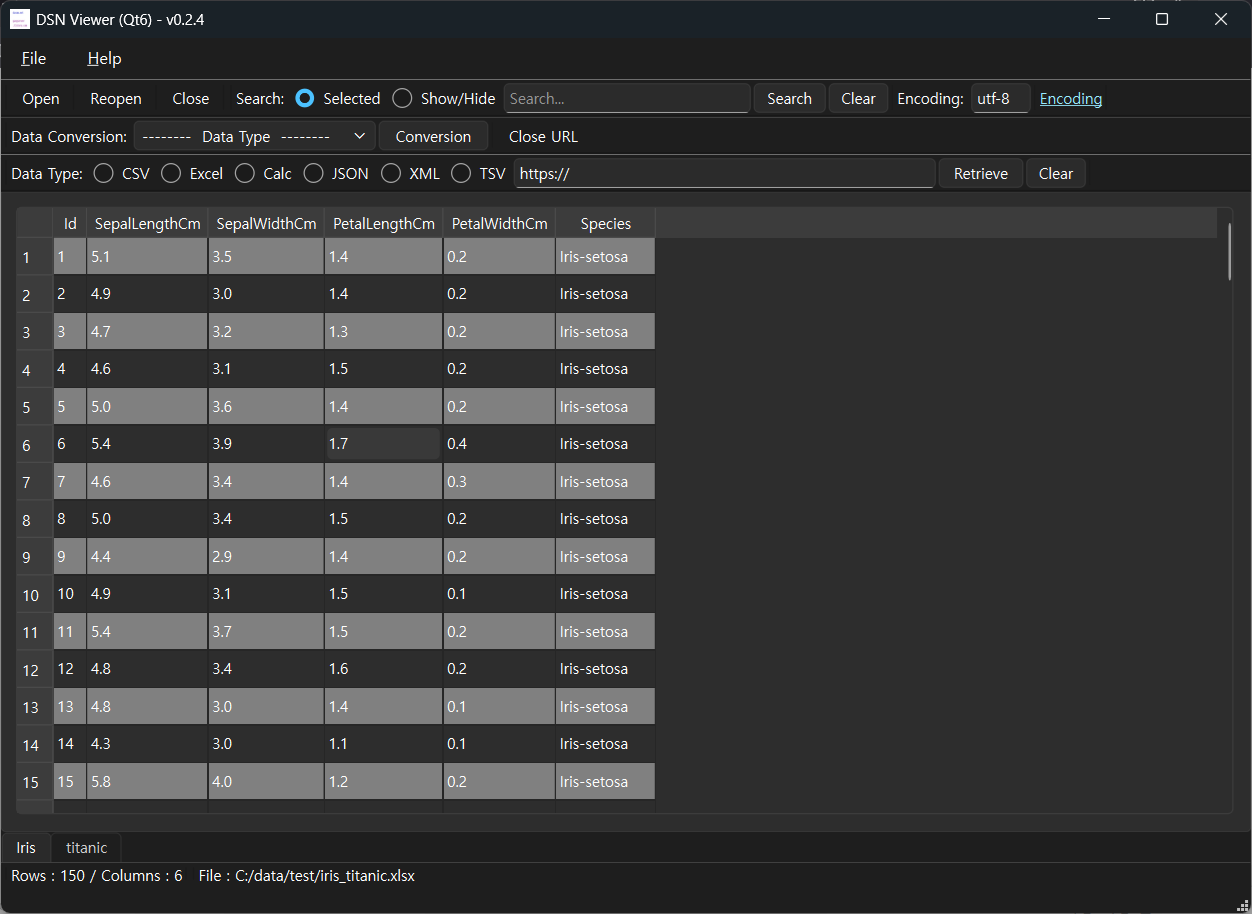
- 파일을 읽어 테이블 구조로 화면에 표시합니다.
- 로컬 파일을 열 수 있습니다.
- 원격 파일을 URL을 이용해 열 수 있습니다.
- (로컬 파일만 지원/원격 파일은 지원 안함) 파일 포맷을 변환 할 수 있습니다. (예, xlsx 문서를 csv로 변환)
- 간단 검색 기능 : 읽은 파일을 키워드로 검색할 수 있습니다.
- 지원하는 파일 확장자 : csv, xlsx, xls, ods, json, xml, tsv
[ 다운로드 ]
윈도우(Windows)용 최종 버전은 아래 링크를 참고해 주세요.
- NSIS 인스톨러(Installer) 버전 / 포터블(Portable) 버전
(v 0.2.4) http://dasom.net/419
* 만약, 우분투(Ubuntu)용 최종 버전이 필요한 경우 아래 링크를 참고해 주세요.
- 데비안 패키지 버전(.deb) / 앱이미지(AppImage) 버전 / 포터블(Portable) 버전
(v 0.2.4) http://dasom.net/418
[ 설치 - 인스톨러(Installer) 버전 ]
설치 파일을 다운로드하면 "dsn-viewer-[Qt version]-[Version]-Setup-x86_64.exe" 라는 파일명으로 저장됩니다.
파일 탐색기 등에서 이 파일을 실행하면 설치가 진행됩니다.
* Qt 버전, 어플리케이션 버전에 따라 아래와 같이 보여집니다.
| Qt version | Version | Program name |
| Qt6 | 0.2.4 | DSN Viewer (Qt6) 0.2.4 |
| Qt5 | 0.2.4 | DSN Viewer (Qt5) 0.2.4 |
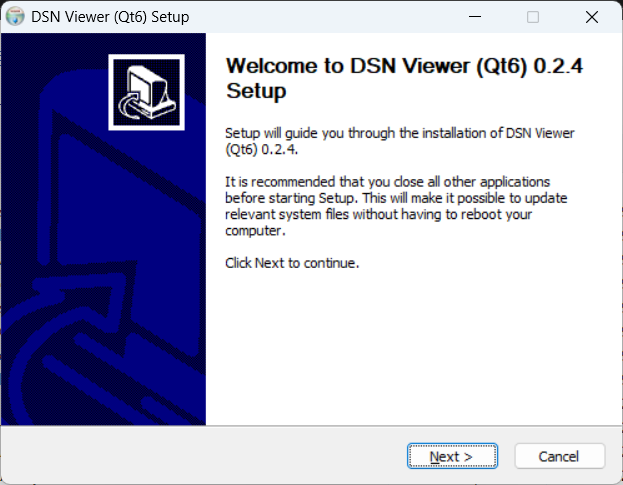
1. [Next] 버튼을 클릭하세요.
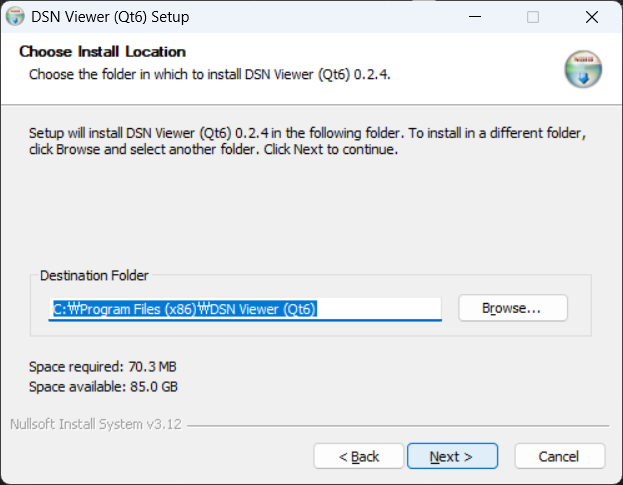
2. 설치 디렉토리를 변경하는 경우, 디렉토리를 변경한 후 [Next] 버튼을 클릭하세요.
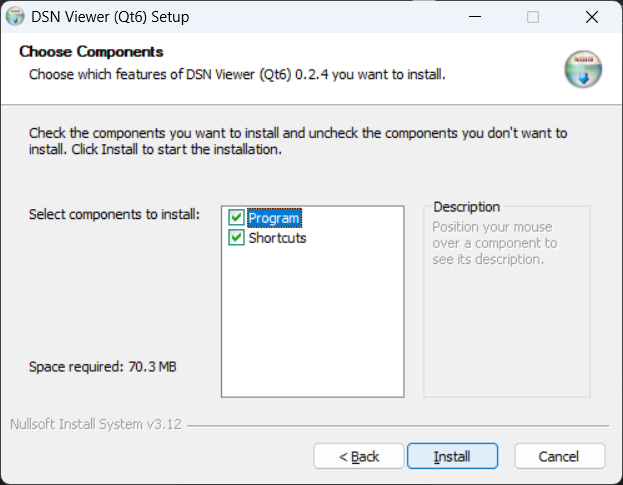
3. 설치 옵션을 선택하고 [Install] 버튼을 클릭하세요.
- Program : DSN Viewer 프로그램 파일
- Shortcuts : 시작 메뉴 및 바탕 화면에 프로그램 바로 가기 생성
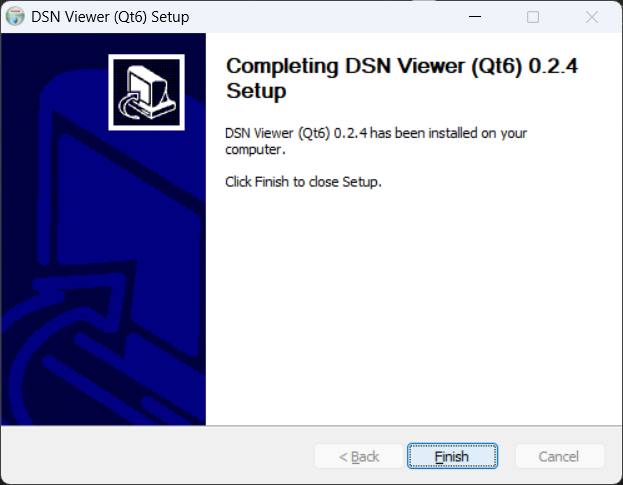
4. 설치 완료
[ 실행 - 인스톨러(Installer) 버전 ]
시작 메뉴나 바탕 화면의 프로그램 바로 가기를 클릭하세요.
( Qt6 )
( Qt5 )
[ 실행 - 포터블(Portable) 버전 ]
파일 탐색기에서 다운로드한 포터블(Portable) 버전 파일을 실행하세요.
(* 스크린샷에는 Qt6 버전의 경우 "dsn-viewer-qt6.exe"로 표시되어 있습니다.
Qt5 버전은 "dsn-viewer-qt.exe"로 표시됩니다.)

또는
명령 프롬프트(Command Prompt)를 실행하여 실행 파일에 읽을 파일을 경로와 함께 실행하는 방법도 있습니다.
(윈도우 10 : 시작 > Windows 시스템 > 명령 프롬프트)
> dsn-viewer-qt6.exe [파일 경로/파일명]
예) > dsn-viewer-qt6 c:\data\test\iris.xlsx
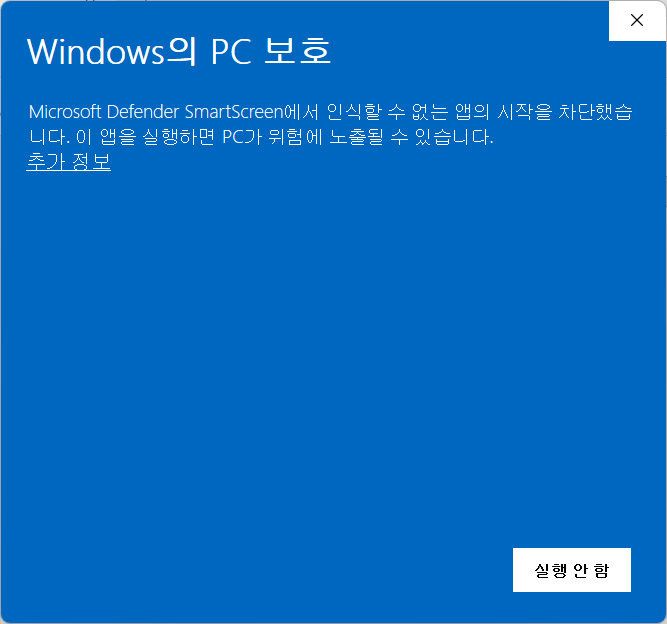
* 윈도우(Windows)에서 파일을 실행할 때 오류가 발생하면 아래 정보를 참고해 주십시오.
We used to have to, upon downloading a file from another computer, go to the file's Properties and then go to the General page t
Before we could use a downloaded file (from another computer), we were required to right-click on the file, select Properties and the General. We were told this was a security measure to help protect you computer from malware sneaking onto your computer…
learn.microsoft.com
[ 제거 - 인스톨러(Installer) 버전 ]
"프로그램 추가/제거"에서 설치된 "DSN Viewer ([Qt version]) [Version]"를 제거하세요.
| Qt version | Version | Program name |
| Qt6 | 0.2.4 | DSN Viewer (Qt6) 0.2.4 |
| Qt5 | 0.2.4 | DSN Viewer (Qt5) 0.2.4 |
( Qt6 )

( Qt5 )

[ 제거 - 포터블(Portable) 버전 ]
다운로드 받은 파일을 삭제하시면 됩니다.
[ 캡쳐 화면 ]
[ 라이선스(License) ]
이 프로그램은 프리웨어입니다.
(누구나 무료로 사용할 수 있는 프로그램입니다.)
이 프로그램은 사용 중 발생할 수 있는 어떠한 문제에 대해서도 보증하지 않습니다.
이 프로그램은 사용자의 개인정보나 데이터를 수집하거나 전송하지 않습니다.
이 프로그램은 다음 사이트에서만 배포할 수 있습니다.
http://dasom.net
https://gangserver.tistory.com